In this article:
How to cancel the scheduling of the activation of a scenario
Follow these steps:
- Go to the "Marketing automation" menu.
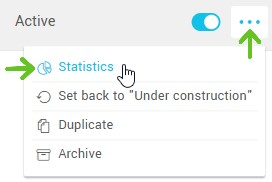
- Open the scenario with a "scheduled" status you wish to cancel. To do so, click on its name or on the "Statistics" option from the action menu.
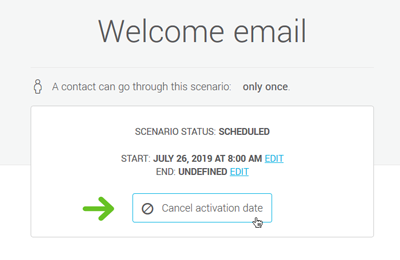
- Click the "Cancel activation date" button and click "Yes" to confirm. The scenario will then go back to the "Under construction" status.
- Click the "Quit" button to exit your scenario. Save your last changes, if needed.
How to edit the start date of a scenario
- Go to the "Marketing automation" menu.
- Open your scenario. To do so, click on its name or on the "Statistics" option from the action menu.
- Click the "Edit" link on the right of the date.
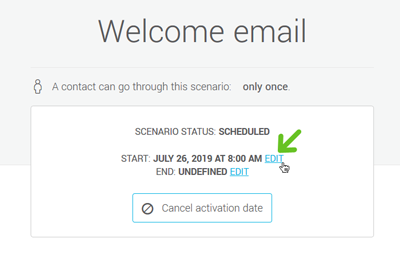
- Make the changes needed.
- Click "Confirm"
How to edit the end date and the action taken
- Go to the "Marketing automation" menu.
- Open your scenario. To do so, click on its name or on the "Statistics" option from the action menu.
- Click the "Edit" link on the right of the date.
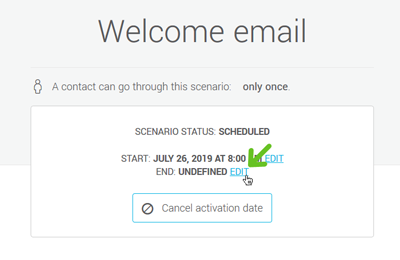
- Make the changes needed.
- Click "Confirm"