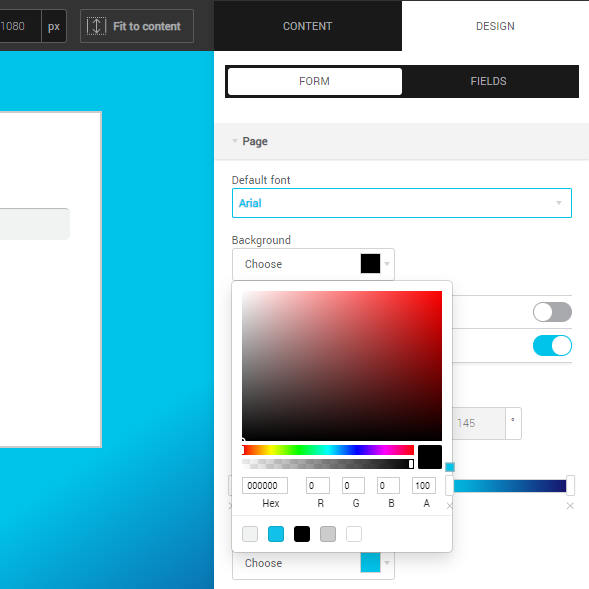
You can access the color options in different places in the form editor. Click on the color swatch to open the pop-up window. You can choose a color from the selection box or enter a color code for more accuracy.
Each time you select a color, it’s added to your favourite colors at the bottom of the pop-up window. You can reuse it for another element’s color.
How do I change the color palette?
Below the selection area, you will notice two bars. The first bar allows you to change from red, blue, green, yellow, etc. Click on the color you want.
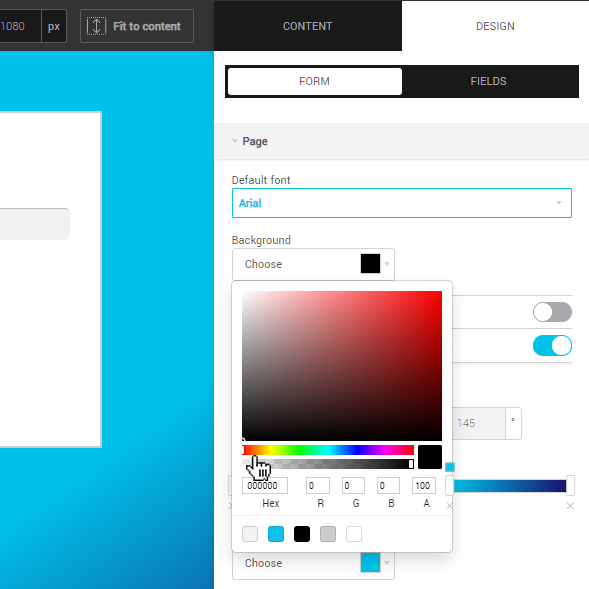
What happens if I want a transparent color, or no color at all?
This is possible. Below the selection area, you will notice two bars. The second bar allows you to adjust the transparency. You can also enter a value (from 0 to 100) in the “A” (alpha) field.
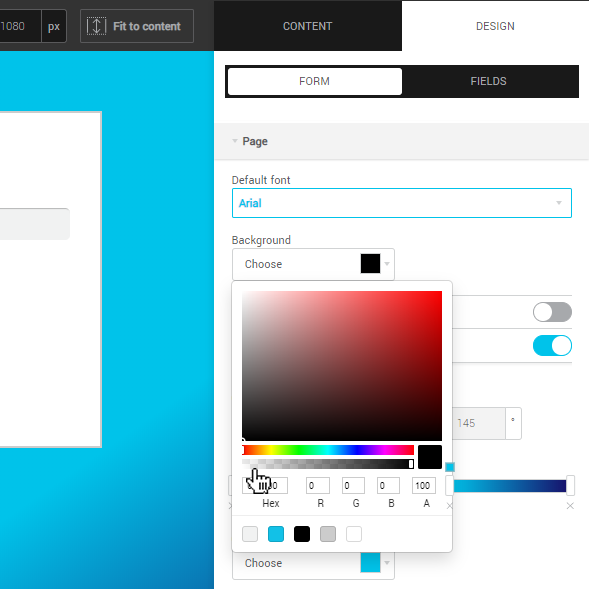
I have a specific color code, how do I use it?
First, you need to know if it's a hexadecimal or RGB code. A hexadecimal code consists of 6 characters, numbers and/or letters. It's sometimes preceded by the # sign. An RGB code is separated into three numerical values: r (red), g (green) and b (blue).
For example, here are the codes for bright red, in each format.
Hexadecimal: FF0000 or F00 (shortcut) or # ff0000
RGB: rgb (255,0,0) or r: 255, g: 0, b: 0
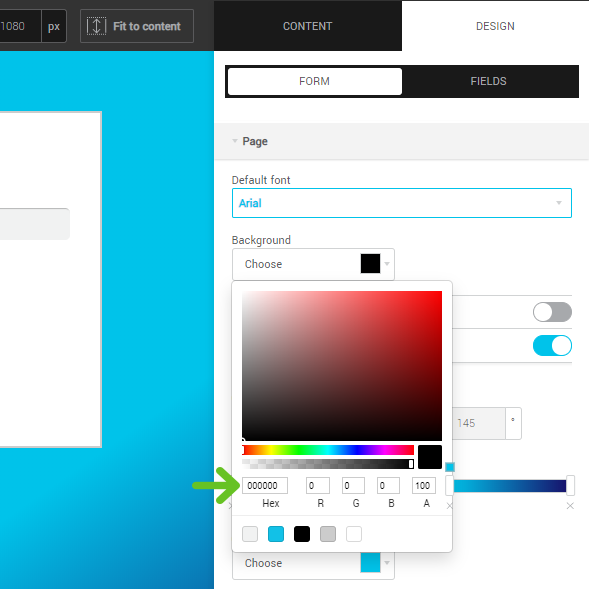
Don’t worry if your code looks nothing like this, because it may still be valid. There are many ways to write colors. A quick Google search will probably tell you what it is and may suggest other ways of writing it.